Image Sequencer
====
[](https://travis-ci.org/publiclab/image-sequencer)
## Why
Image Sequencer is different from other image processing systems in that it's _non-destructive_: instead of modifying the original image, it **creates a new image at each step in a sequence**. This is because it:
* produces a legible trail of operations, to "show your work" for evidential, educational, or reproducibility reasons
* makes the creation of new tools or "modules" simpler -- each must accept an input image, and produce an output image
* allows many images to be run through the same sequence of steps
* works identically in the browser, on Node.js, and on the commandline
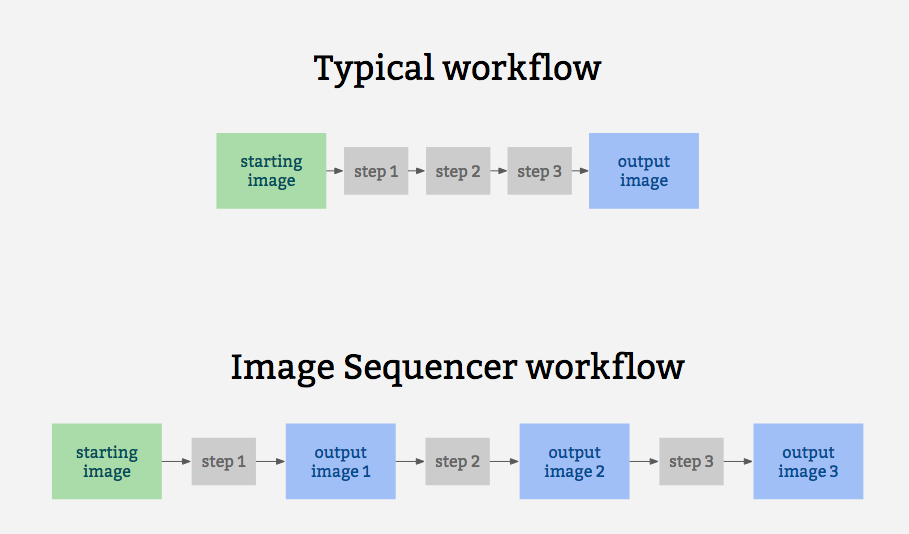
It is also for prototyping some other related ideas:
* filter-like image processing -- applying a transform to any image from a given source, like a proxy. I.e. every image tile of a satellite imagery web map
* test-based image processing -- the ability to create a sequence of steps that do the same task as some other image processing tool, provable with example before/after images to compare with
* logging of each step to produce an evidentiary record of modifications to an original image
* cascading changes -- change an earlier step's settings, and see those changes affect later steps
* "small modules"-based extensibility: see [Contributing](https://github.com/publiclab/image-sequencer/blob/master/CONTRIBUTING.md)
## Examples
* [Simple Demo](https://publiclab.github.io/image-sequencer/)
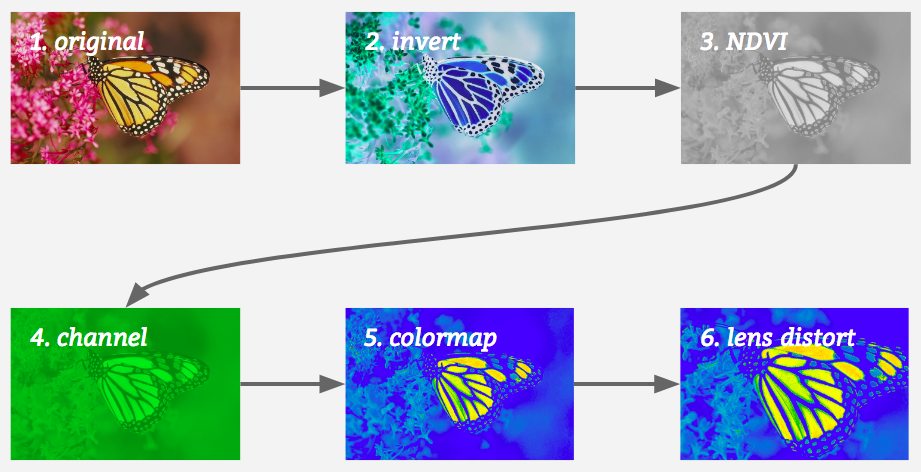
A diagram of this running 5 steps on a single sample image may help explain how it works:
## Jump to:
* [Installation](#installation)
* [Quick Usage](#quick-usage)
* [CLI Usage](#cli-usage)
* [Classic Usage](#classic-usage)
* [Method Chaining](#method-chaining)
* [Multiple Images](#multiple-images)
* [Creating a User Interface](#creating-a-user-interface)
* [Contributing](https://github.com/publiclab/image-sequencer/blob/master/CONTRIBUTING.md)
* [Submit a Module](https://github.com/publiclab/image-sequencer/blob/master/CONTRIBUTING.md#contributing-modules)
* [Get Demo Bookmarklet](https://publiclab.org/w/imagesequencerbookmarklet)
## Installation
This library works in the browser, in Node, and on the commandline (CLI), which we think is great. You can start a local environement to test the UI with `npm start`
### Browser
Just include [image-sequencer.js](https://publiclab.github.io/image-sequencer/dist/image-sequencer.js) in the Head section of your web page. See the [demo here](https://publiclab.github.io/image-sequencer/)!
### Node (via NPM)
(You must have NPM for this)
Add `image-sequencer` to your list of dependancies and run `$ npm install`
### CLI
Globally install Image Sequencer:
```
$ npm install image-sequencer -g
```
(You should have Node.JS and NPM for this.)
### To run the debug script
```
$ npm run debug invert
```
## Quick Usage
Image Sequencer can be used to run modules on an HTML Image Element using the
`replaceImage` method. The method accepts two parameters - `selector` and `steps`.
`selector` is a CSS selector. If it matches multiple images, all images will be
modified. `steps` may be the name of a module or array of names of modules.
Note: Browser CORS Restrictions apply. Some browsers may not allow local images
form other folders, and throw a Security Error instead.
```js
sequencer.replaceImage(selector,steps,optional_options);
```
`optional_options` allows to pass additional arguments to the module itself.
For example:
```js
sequencer.replaceImage('#photo','invert');
sequencer.replaceImage('#photo',['invert','ndvi-red']);
```
## CLI Usage
Image Sequencer also provides a CLI for applying operations to local files. The CLI takes the following arguments:
-i | --image [PATH/URL] | Input image URL. (required)
-s | --step [step-name] | Name of the step to be added. (required)
-b | --basic | Basic mode only outputs the final image
-o | --output [PATH] | Directory where output will be stored. (optional)
-c | --config {object} | Options for the step. (optional)
--save-sequence [string] | Name space separated with Stringified sequence to save
--install-module [string] | Module name space seaprated npm package name
The basic format for using the CLI is as follows:
```
$ ./index.js -i [PATH] -s step-name
```
*NOTE:* On Windows you'll have to use `node index.js` instead of `./index.js`.
The CLI also can take multiple steps at once, like so:
```
$ ./index.js -i [PATH] -s "step-name-1 step-name-2 ..."
```
But for this, double quotes must wrap the space-separated steps.
Options for the steps can be passed in one line as json in the details option like
```
$ ./index.js -i [PATH] -s "brightness" -c '{"brightness":50}'
```
Or the values can be given through terminal prompt like
 `save-sequence` option can be used to save a sequence and the associated options for later usage. You should provide a string which contains a name of the sequence space separated from the sequence of steps which constitute it.
```shell
sequencer --save-sequence "invert-colormap invert(),colormap()"
```
`install-module` option can be used to install new modules from npm. You can register this module in your sequencer with a custom name space sepated with the npm package name. Below is an example for the `image-sequencer-invert` module.
```shell
sequencer --install-module "invert image-sequencer-invert"
```
The CLI is also chainable with other commands using `&&`
```
sequencer -i -s && mv
`save-sequence` option can be used to save a sequence and the associated options for later usage. You should provide a string which contains a name of the sequence space separated from the sequence of steps which constitute it.
```shell
sequencer --save-sequence "invert-colormap invert(),colormap()"
```
`install-module` option can be used to install new modules from npm. You can register this module in your sequencer with a custom name space sepated with the npm package name. Below is an example for the `image-sequencer-invert` module.
```shell
sequencer --install-module "invert image-sequencer-invert"
```
The CLI is also chainable with other commands using `&&`
```
sequencer -i -s && mv